
- For single Site Collection Navigation scoped Term Sets, go to the CONFIGURE A SITE’S MANAGED NAVIGATION SETTINGS post
- NOTE: the advantages here over traditional SharePoint Navigation are minimal
- For Global Navigation scoped Term Sets, go to the Term Store
- In on premise Central Admin
- Click Application Management
- Click Manage Service Applications [Service Applications]
- Click Managed Metadata Service
- In Office 365
- Click Admin > SharePoint [SharePoint Admin Center (SPO Admin)]
- Click Term Store
- In Site Collection (on premise or Office 365):
- Click Site Actions > Site Settings
- Click Go to top level site settings [Site Collection Administration], if you are not on the root site collection
- Click Term store management [Site Administration]
- In on premise Central Admin
- Click on a Term Group that you are either a group manager or contributor on or create a new one (my example in the screen shots below is called “Intranet”)
- Create a new Term Set (my example in the screen shots below is called “Global Navigation”)
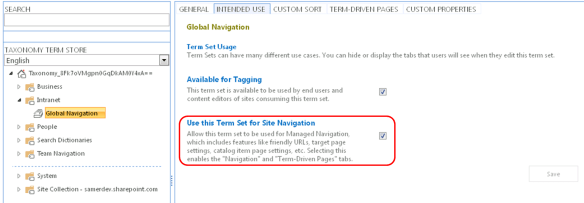
- Click on the “Intended Use” tab
- Check the “Use this Term Set for Site Navigation” option and click the Save button
- Create a new Term (my example in the screen shot below is called “Home”)
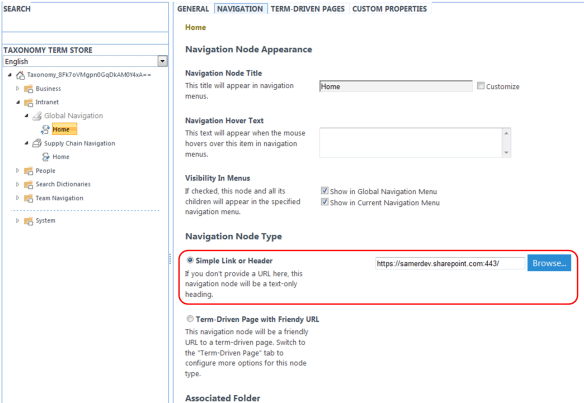
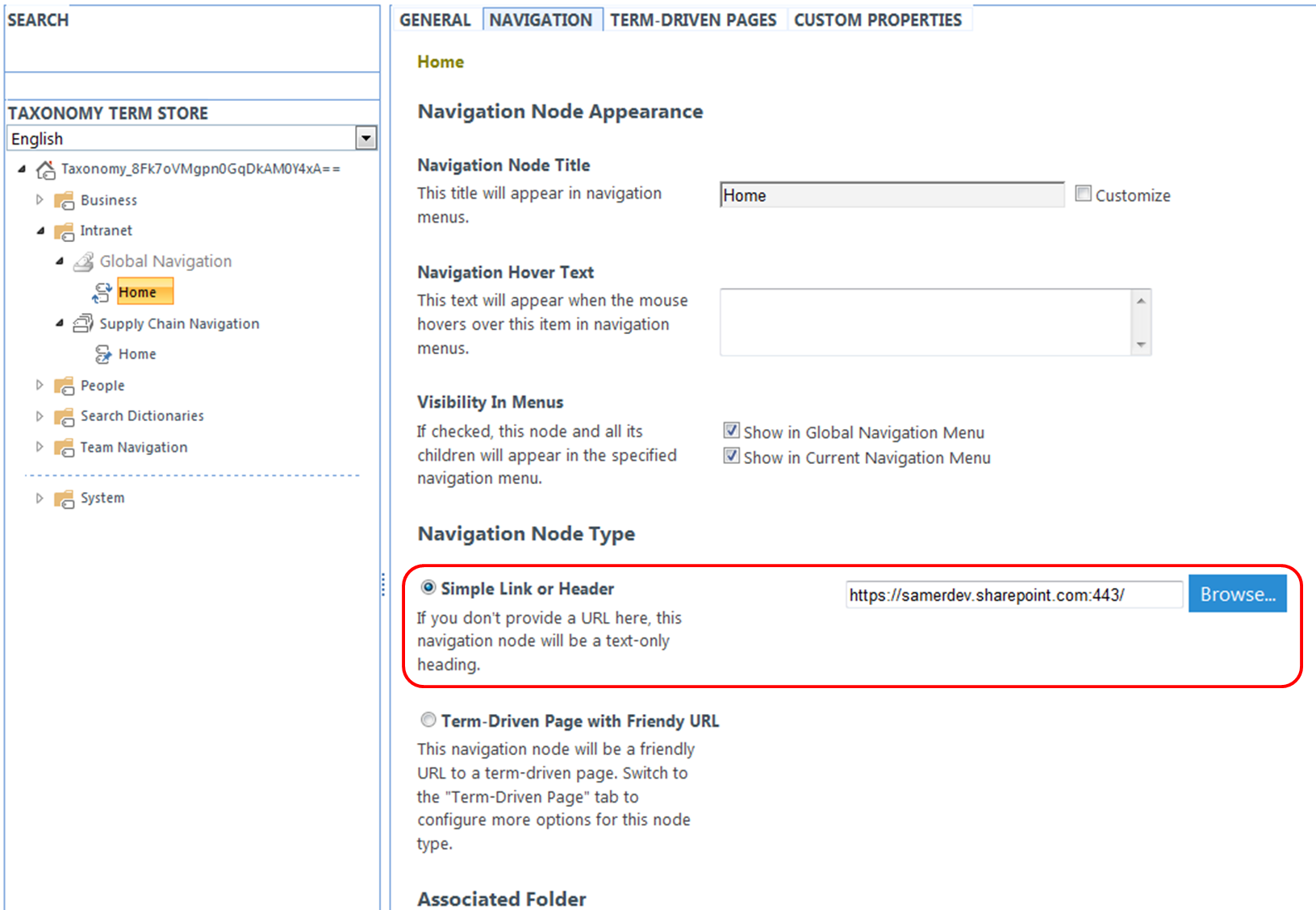
- Click on the “Navigation” tab
- Click the “Simple Link or Header” radio button [Navigation Node Type]
- Enter the URL to the a site you would like to use as a home/landing site and click the Save button
- You can enter a host/Web Application relative URL to your site
- It is recommended to enter a full URL that includes the protocol, host, and port in case your Global Navigation Term Set might be used across multiple Web Applications or Site Collections (more on this in a bit)
Create the Managed Navigation Term Set
Reply

 Samer 365