- Go to the site where you would like to use Managed Navigation
- NOTE: if you would like to use Navigation inheritance for children sites, then make sure to perform the configuration on the top site which should have this navigation in your Site Collection (most likely your root site in the collection)
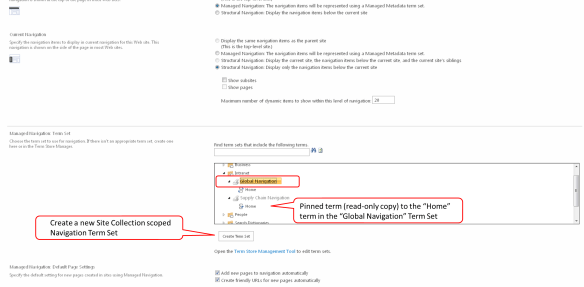
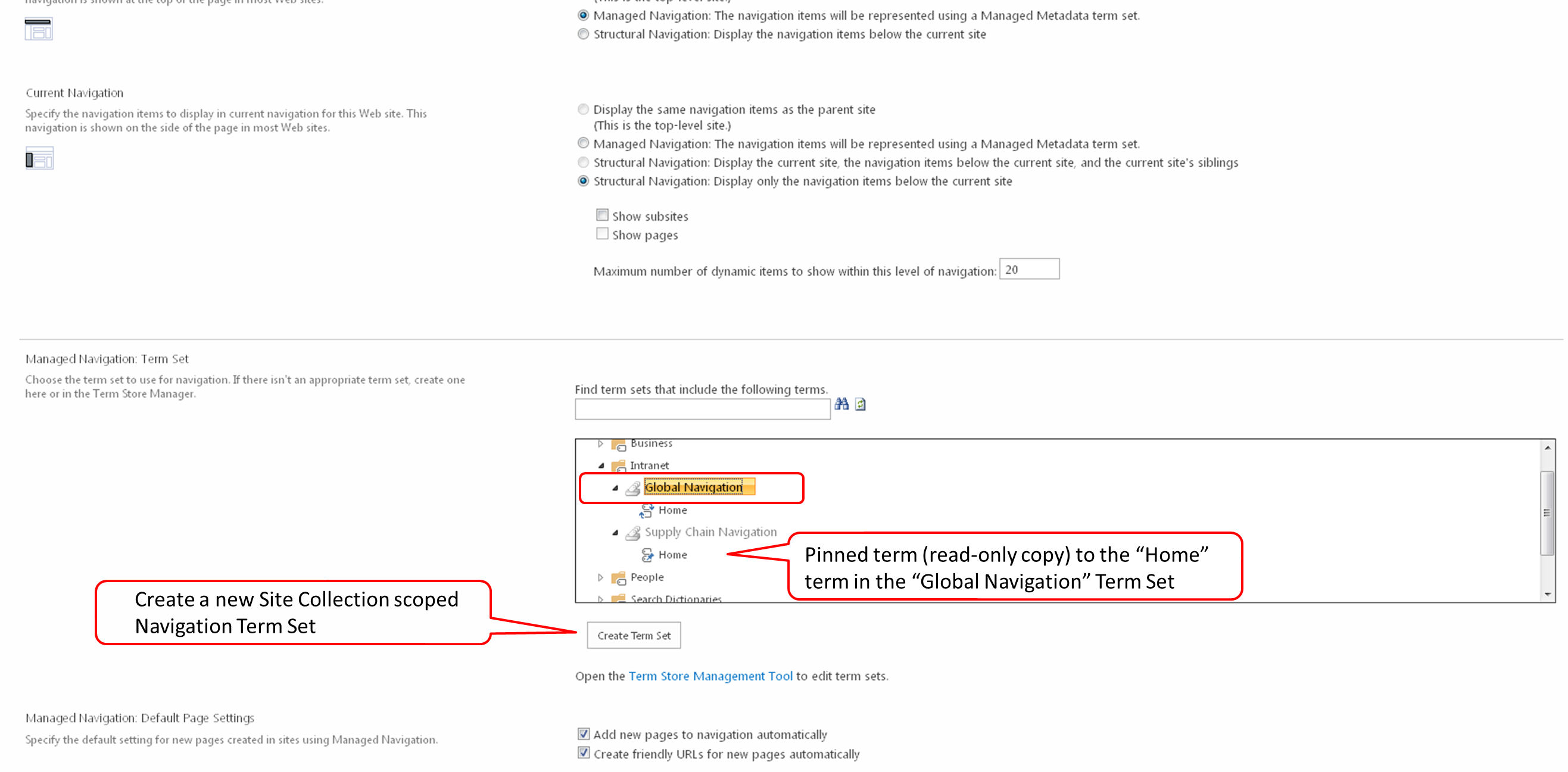
- NOTE: a navigation Term Set can only be configured once to a site, if you would like to reuse your Term Set for navigation on another peer site or another Site Collection, or even another Web Application, then you will need to create another Term Set and pin the first level terms (with children) to your existing Term Set. You can see this in the screen shot below on the Term Set “Supply Chain Navigation”.
- Go to the Navigation configuration screen in Site Settings
- Click Site Actions > Site Settings
- Click Navigation [Look and Feel]
- Click on the Managed Navigation option [Global Navigation section]
- Expand the Term Groups and select the Term Set that you would like to use for your site’s Navigation [Managed Navigation: Term Set section] or click the “Create Term Set” button to create a new Site Collection scoped Navigation Term Set

- Then click the OK button
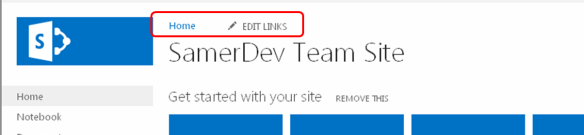
- Go to your site and observe the Global Navigation

Create the Managed Navigation Term Set
- For single Site Collection Navigation scoped Term Sets, go to the CONFIGURE A SITE’S MANAGED NAVIGATION SETTINGS post
- NOTE: the advantages here over traditional SharePoint Navigation are minimal
- For Global Navigation scoped Term Sets, go to the Term Store
- In on premise Central Admin
- Click Application Management
- Click Manage Service Applications [Service Applications]
- Click Managed Metadata Service
- In Office 365
- Click Admin > SharePoint [SharePoint Admin Center (SPO Admin)]
- Click Term Store
- In Site Collection (on premise or Office 365):
- Click Site Actions > Site Settings
- Click Go to top level site settings [Site Collection Administration], if you are not on the root site collection
- Click Term store management [Site Administration]
- In on premise Central Admin
- Click on a Term Group that you are either a group manager or contributor on or create a new one (my example in the screen shots below is called “Intranet”)
- Create a new Term Set (my example in the screen shots below is called “Global Navigation”)
- Click on the “Intended Use” tab
- Check the “Use this Term Set for Site Navigation” option and click the Save button

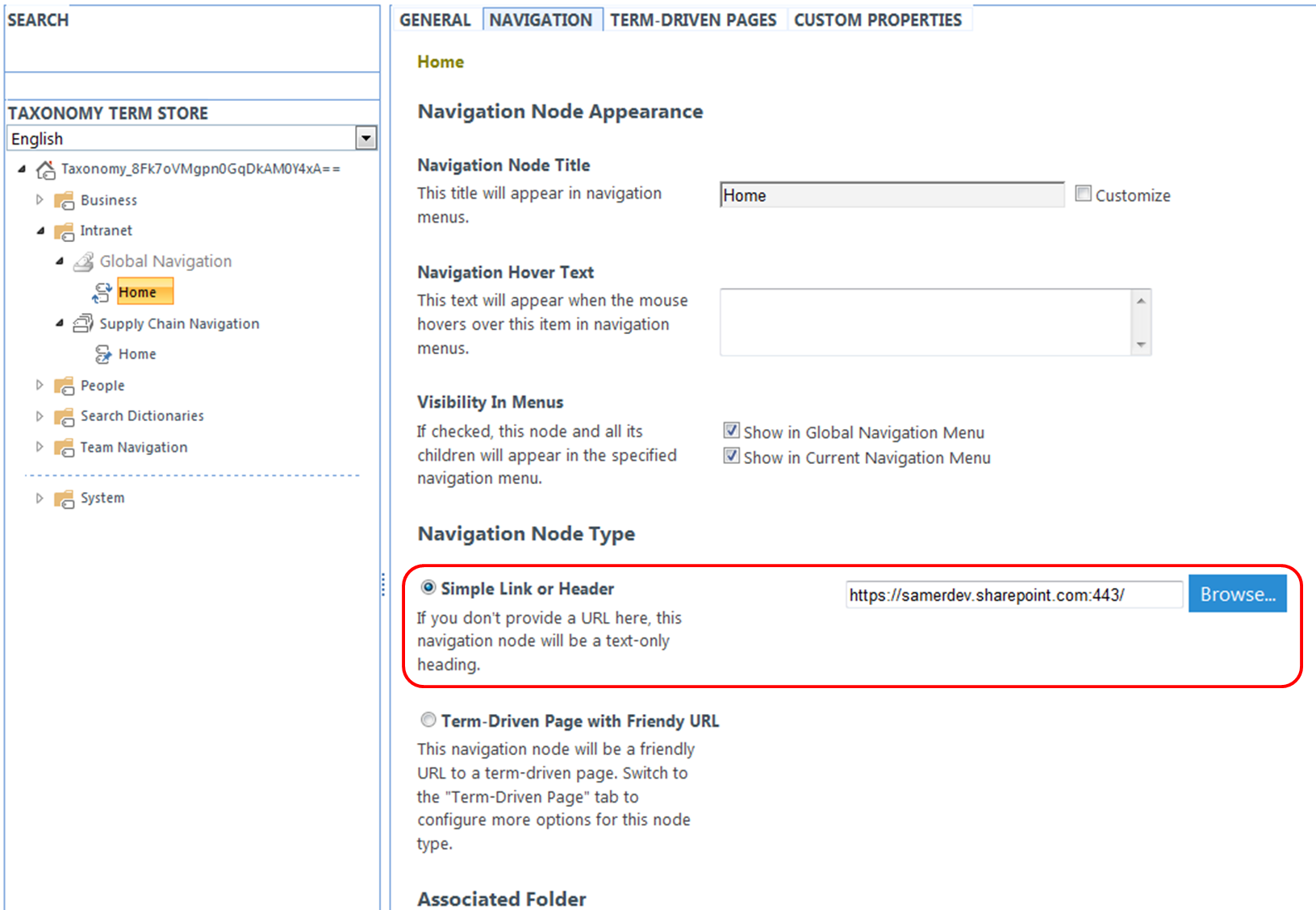
- Create a new Term (my example in the screen shot below is called “Home”)
- Click on the “Navigation” tab
- Click the “Simple Link or Header” radio button [Navigation Node Type]
- Enter the URL to the a site you would like to use as a home/landing site and click the Save button
What you need to know about Managed Navigation
In 2013, if you go to Site Actions > Site Settings > Navigation (under the Look and Feel section), you will see the screenshot below. You need to have the “SharePoint Server Publishing Infrastructure” site collection feature activated to see the Navigation option. Any site that belongs to this site collection will now have the capability to use Managed Metadata based navigation, no matter which site template was used (you do not need to have a site created using the publishing site template or even have the “SharePoint Server Publishing” site feature turned on for this to be available.
You will notice the “Managed Navigation” option; this option is new in SharePoint 2013 and can provide you the following benefits.
- Allows you to create navigation menus with 3 tiers (the other options allow you no more than 2 tiers)
- A consistent navigation experience across sites, site collections, and even web applications (within a single tenant)
- Flexibility to make changes to menus across sites without duplication of effort for each site
- Ability to tag content and people with navigation items
- Friendly URLs
- Navigation item Pinning and Reusing
The only disadvantage to using the “Managed Navigation” option is that security trimming of the navigation items will no longer work. Managed Metadata Global Navigation is intended to provide a cross-site collection consistent navigation experience. Since each site collection is its own security perimeter, security trimming navigation items is not possible.
Metadata driven Navigation
Recently I gave a presentation at SPS Philly on Managed Metadata & Metadata driven Navigation. The idea of this presentation was to show how easy it is to create a 3 tiered global navigation in SharePoint 2013. Afterwards I didn’t quite feel that the presentation was as simple and clear as I hoped it should have been (although attendees did come up to me at the end and thanked me, stating that the presentation was very beneficial to them). So I thought that I should cover this in a blog for anyone who didn’t quite see the simplicity of it. I started by explaining the changes to Managed Metadata from 2010 to 2013. I will leave this to a separate future post. In this blog, I will just show you how to create the 3 tiered global navigation. So here it is…
1. What you need to know about Managed Navigation
2. Create the Managed Navigation Term Set
3. Configure a site’s Managed Navigation settings
4. Drag and Drop Navigation settings
Now there are gotcha’s, as with most SharePoint related features. I have touched on some of these, but Nik Patel wrote a great post discussing these called Limitations of Managed Navigation in SharePoint 2013.
A BIT ABOUT SHAREPOINT SATURDAY
I have been to many SharePoint events and I am most impressed with SharePoint Saturdays [www.sharepointsaturday.org]. I’m impressed because consistently you find a very high level of presenters and content that is both topical and difficult to find else where (not to mention that it is free). It is no wonder that they fill up incredibly fast (New York filled within a day last year and Philly took a couple days once the announcement went out). SharePoint Saturdays occur once a year in major cities around the world. Checkout some of the SharePoint Saturday Philly presentations that you missed this year.
SharePoint User Profile Import / Synchronization
HISTORY
SharePoint 2003 & 2007:
- User Profile Import only
- No issues with any release (that I am aware of, please update me if you are aware of any issues)
SharePoint 2010:
- User Profile Synchronization (read or write, but not both on the same property)
- Prior to the April 2012 CU (including SP1); Synchronization would do one of the following behaviors based on which CU you had installed:
- Profile Synchronization service will not start
- Profile Synchronization service starts, but synchronization fails
- Synchronization succeeds once and only once (the full sync)
- Synchronization succeeds on first full sync and further incremental sync, but fails further full syncs
- other Sync DB issues, see here
- As of the April 2012 CU; Synchronization just works with the following notes:
- There is still a bug where a UPA created with a Windows PowerShell session not running as the Farm Account prevents provisioning of the UPS service instance, has NOT been fixed. We still need to use the workaround here
- There is also no change to the support of only a single OU per tenant for Synchronization
SharePoint 2013:
- User Profile Import or Synchronization
- It appears as if Import does not understand Subscription IDs and therefore cannot be used with a Partition Mode UPA. This may prevent My Sites from working…
- I have not tried synchronization yet, please provide your experiences…
CONFIGURATION
- For all versions of SharePoint, you will need to use a domain account for import/synchronization and provide that account the “Replicate Directory Changes” permission. The following article is directed for SharePoint 2010, but has the same necessary steps for all the other SharePoint versions.
- Configure import or synchronization in SharePoint
- User Profile Import
- SharePoint 2010: Configuring Profile Import in SharePoint 2010 – A Way Around the Minefields
- SharePoint 2013: Profile Import in SharePoint 2013 – Back to the Future
- User Profile Synchronization
- SharePoint 2010:
- SharePoint 2013: Setting up User Profile Synchronization in SharePoint 2013
- User Profile Import
Implementing ECTs in SPD using Stored Procedures
If you plan to use Stored Procedures, you will need a separate stored procedure for each CRUD operation. In addition, you will need separate stored procedures for any associations you might need. It is important to note that each Read List, Read Item, and Association stored procedures need to return all the fields that will be required by any other stored procedure defined by that Content Type. In other words, the Read List, Read Item, and Association stored procedures need to return the same exact fields. If they don’t, you will get runtime errors.
Since most examples center on tables, you will often not see a detailed discussion of fields that are required for all the operations as tables always return to you all the fields of that table. So to avoid unintended runtime errors with your ECTs always make sure that your stored procedures return to you all the fields that you think you might need even if you expect not to need them in a particular ECT operation definition. SPD then allows you to define which of these fields should be included in the ECT definition.
The following is a list of field issues that you should be aware of:
- Unique Identifiers: Each stored procedure needs to provide a unique identifier of type integer. SPD will allow you to have other types of unique identifiers, but you will run into runtime errors if you try to perform any association, create, update, or delete operations. You need these identifiers to avoid issues even if they are completely meaningless to your solution.
- Limit filters (Read List operations): If it is possible that your data will return more than two thousand records, this will become big problem down the line. BCS by default has a 2000 item throttling limit. This limit can be changed, see BCS PowerShell: Introduction and Throttle Management. You can go without limit filters in development and not see any issue even if your database has hundreds of thousands of records as External lists will by default implement paging. Just understand that if you are using the object model (BCS Runtime or Client object models) to access your data, all records will be returned to you. This can be a major cause of performance degradation and you will not likely see it till you are on a production environment where there are greater latency issues (such as distributed servers, zones, and SSL implementations that you are likely not to have in development). One important thing to note is that a limit filter on its own will just limit the items returned; this means that without another filter type you can only access a subset of your data. For example if you want to limit the amount of books returned by a query to 100, you would add a limit filter and add another such as a Wildcard Filter (say for example a book’s partial title or publish date), this will mean you will get a maximum of 100 books which match the Wildcard filter returned. So in order to implement limit filtering on Read List operation, your Read List stored procedure needs to have an input parameter to use for performing an additional filter criteria.
- Nullable field types: SPD will give you warnings if it finds fields that are nullable, but it can handle them just fine. Be careful with this as External lists will try to return empty strings to these fields if the fields are not required. This can be a real problem if the field is not of a CHAR, VARCHAR, or some other string type. This will give you runtime errors. If you are using these fields via the object model (BCS Runtime or Client object models), then you can handle this by returning nulls for these field types.

How to develop and deploy the ECTs/BDC Models to multiple environments
Up to this point I have discussed creating ECTs and BDC Models and Resources in SPD, VS, notepad, and Central Admin. So which should we be really using? I will first discuss each of these platforms:
SharePoint Designer
is free tool from Microsoft that can provide no-code solution to creating BDC Models and ECTs. It will provide for rapid development without writing any code or markup, but has two major drawbacks. First, the solution will not be searchable as stated in Issue 3. Second, the solution will be specific to a SharePoint site that you are required to identify before developing your solution and you will not be able to deploy your solution to a different site.
If neither of the drawbacks is an issue for you, then SPD is a wonderful tool for your BCS development. It will even allow you to create External Lists (among other things) based on your ECTs with a push of a button.
Visual Studio (2010)
Another tool from Microsoft that will allow you to create BDC Models, Resources, and ECTs with code or XML markup. Although it is not free, no SharePoint developer should develop without it. It has no limitations on your BCS solution and will allow you to package and deploy your BCS Solution to multiple sites. It’s only true drawback is that you will either need to write code or XML markup for your solution and can therefore not really be recognized as a rapid development platform.
Notepad (or your favorite text editor)
Since you can develop BCS Solutions using only XML markup, there is nothing stopping you from writing your XML in your favorite text editor. This however is no small feat as you will need to be very familiar with all the necessary BCS tags and all their necessary attributes. In addition, this approach is very error prone.
Central Admin
Although Central Admin is not a development platform; it will however allow you to do certain things that will make your development easier. Central Admin will allow you to import and export both .bdcm and .bdcr files. This means that if you do develop your solution in either Notepad or SPD (or even VS for that matter), Central Admin will allow you to import those files, strip out or add resources, and then allow you to export the new model or resources. This is incredibly useful if you want to take a solution built in SPD for example which is targeted to a specific site, strip out all site specific information, and then export out a true BDC Model that can then be implemented on any SharePoint site.
There are also third-party platforms that provide much of the capabilities of SPD without some of the limitations in creating and implementing BCS Solutions that are worth investigating.
So which of the above would you think is the best way to go?
Well, the answer turns out to be a combination of the platforms above, taking advantage of each of the above platform’s capabilities and using another platform to overcome the drawbacks of the first. Below is the process I used to rapidly develop a solution that is both searchable and deployable to multiple environments:
- Create all the required ECTs for a given BDC Model in SPD
- Include at least a Finder and a Specific Finder method for each ECT
- Include any other necessary operations for each ECT
- Define any associations for each ECT
- Identify a field to mark as a Title field for each ECT
- Select all the ECTs and export them out as a single BDC Model
- Save that model as a .bdcm file on your local system
- Import the .bdcm file into (the BCS Service Application on) CA
- Export the model out of CA as a different .bdcm file then was imported into it
- Make sure to uncheck any resource checkboxes prior to exporting as a BDC Model (this strips out any resources out of your BDC Model)
- Open VS and create a new (or open an existing) Blank SharePoint 2010 project
- Add a new BDC Model item
- Delete the generated Entity1.cs and the Entity1Service.cs files
- Open the .bdcm file (using an XML editor within VS)
- Right-Click the .bdcm file and choose Open With…
- Delete all content in the .bdcm file in VS
- Open the .bdcm file exported from CA with Notepad (or your favorite simple text editor)
- Copy all content and paste it into the .bdcm file in VS
- Make all the necessary changes to make the model searchable (see Issue 3)
- If deploying from VS, then open the newly created Feature.Template.xml file and add the following markup:
<?xmlversion=”1.0″encoding=”utf-8″ ?>
<Feature xmlns=”http://schemas.microsoft.com/sharepoint/”>
<Properties>
<Property Key=’SiteUrl’ Value=’http://YourDevSite‘/>
</Properties>
</Feature>- Note that for each BDC Model, there is a SharePoint feature (you cannot have more than one model per feature)
- The feature will be scoped to the Farm level (as all BCS Solutions are defined at the Farm level in CA)
- You should only deploy from VS for development purposes, for Integration, QA, or production deployments, you should use PowerShell
- Right-Click on your project and choose to package your solution
- Go to your Bin folder in your project from your file system and copy the WSP file that is generated when you performed step 15
- Save the WSP onto the SP Application Server that you want your solution deployed to
- Deploy and Activate your WSP package to the target SP Application Server
- Go to the BCS Service Application in CA and select the BDC Model that was just deployed
- 20. Right-Click the model and choose to Set Permissions
- Add all the accounts that will need the appropriate permissions to your BDC model and click OK
And you are done…Only 21 steps, not a lot ;).
BDC Models, Resource files, and making Content Types Searchable
As stated earlier, SharePoint Content Types (including ECTs) represent entities and encapsulate all the necessary metadata about those entities. BDC Models represent a collection of ECTs and any relationships between those ECTs. So if you wanted to represent publishers and books and associate all the books published by each publisher, you would need to define the publishers, books, and their association within one BDC Model. BDC Models can be implemented in code via Visual Studio (VS) or can be implemented using XML via VS, SPD, or notepad. If they are implemented using XML, then the resulting file is referred to as the BDC Model (.bdcm).
BDC Models could include other information such as permissions for the ECTs, system or line of business properties, localized names, or proxies, but these types of information are considered resources and are best either implemented in Central Admin or placed in BCS Resource files (.bdcr). These can also be implemented via code in VS, but it is not usually a good practice.
Now although you can create a BDC Model, that doesn’t mean that you can search that model in SharePoint Enterprise (or FAST) Search just yet. You will have to mark the Model and each ECT as searchable. You will also need to create a profile page for at least each model and may create a profile page for each ECT. It is important to note that none of the steps necessary to make your solution searchable can be implemented directly in SPD, you will either have to open your model in notepad or VS and make XML changes for this to work. I will go into further detail about exactly how to do this in a future blog.
Defining and developing your BCS entities into ECTs
There are many examples online and in books on how to create ECTs using SPD. Most of them focus on building ECTs against SQL Server database tables and show you how to create all CRUD operations without differentiating between the different operational requirements for each CRUD operation. Here I will focus on these differences and what they mean.
A SharePoint Content Type is a way for SharePoint to represent an entity. So if you have external data that represents books and publishers, then you will need to create two External Content Types, one representing publishers and another representing books. All ECTs require two operations as a minimum; Read List and Read Item operations. This is because in order to create an external list, you need to be able to read a list of items (books or publishers) and be able to view a particular item (a book or publisher). Each of these operations is a separate request to the database. It is important to note that the Read Item operation is of particular importance as any Update operations will also require a call to the Read Item operation prior to performing the Update.
An Association operation is how the BCS will allow you to get parent-child data. For example, if you have a publisher’s content type and a books content type, then you can use an Association operation to get all the books that belong to a particular publisher. Essentially you need to implement a Stored Procedure that has a publisher identifier as an input parameter and returns book entity fields. In order to do this consistently in the books content type, you should have the Publisher identifier (your foreign key) as one of the fields of the books content type. That field is then used to map the Find Item and Association methods for your ECT. It is important to note that this foreign field has to be a different field than the field that is used as the unique identifier for your child ECT and it has to be unique on the parent ECT. SPD will allow you to use non-integer fields for this, but to avoid runtime errors, make sure the foreign field is of integer type.
Authenticating a BCS Solution to an External System
The first questions you should ask yourself is how do you want to access the data in SQL Server and what accounts you want to get the data with. Most examples you can find will use Pass through, so essentially you are passing the logged-on user’s credentials to SQL Server. This is a problem when you have thousands of users. Do you really want to give customers direct access to the database? Ok, what are our other options then?

We could use Revert To Self. This means that we would use the identity of the application pool to get our data. This is a viable option if we treat all users to our application the same. Unfortunately my client wanted customers to be able to perform CRUD operations on their own data, but no one else. If we used Revert To Self, the database would not know if the current request is for a user that should or should not be able to update the requested information. So that leaves us with one final option; Impersonation.
Impersonation is implemented using the Secure Store Service (SSS) in SharePoint 2010. The idea is that the SSS will detect the current logged-on user’s identity and based on permission rules that we create in the Secure Store, the request to SQL Server will be permitted or denied. If permitted, the SSS will use an impersonated identity defined in the Secure Store to make the request to SQL Server. This approach is ideal if you are going to deploy the solution to multiple environments as users and users’ permissions could be different between the environments and it pushes security as a configuration step, abstracting it from the solution itself. Another benefit to this approach is that the client wanted to authenticate customers via Claims authentication, but wanted their staff to login using AD. The SSS allows us to use Claims groups, as well as AD groups, and give us the capability to assign Claims users permissions to the database that are different from the AD users permissions.
This is the approach we took for authenticating to the SQL Server and I will go into further detail about this in a future blog. For now, you can find more information on Authenticating to Your External System on the BCS Team Blog.