QnA Maker

Bots and AI are all the rage these days as the next technologies promising to improve productivity, build efficiencies and capabilities that don’t exist today, change how humans engage with technology, and change the world.

You can see these technologies in play today in Alexa, Google Home, Siri, and Cortana.  These technologies have been integrated into laptops, tablets, and phones.  These same technologies have also spawned whole new families of consumer devices such as the Amazon Echo and other personal assistant devices.  These Bots and AI will eventually be deeply integrated in every device, application, and service.

The most basic and common use of bots has been developing Question and Answer solutions, such as Knowledge Base information and FAQs.  You often see this in adds for the new class of personal assistant devices…”Alexa, what’s the weather tomorrow?”, “Google, who won the Super Bowl?”, “Siri, how far is the north pole?”.  In these cases, the knowledge bases are Search Engine results, which are queried, indexed based on relevance, and read/written back to the user.

The thing about bots is that they can outperform a search engine. Search engines don’t generally give you answers to questions. They give you the source of the answer to your question. You still have to read through the sources to find the answer.  A bot, on the other hand, can actually answer the question directly, providing a link to the source for reference.

As for Office 365 and other Microsoft applications and services, they released the Bot Framework for developers to integrate into their applications.  The first service that Microsoft natively integrated bots into was Microsoft Teams (using a variation of the Bot Framework). Rest assured that it wouldn’t be long before they are integrated into all of Office 365 and other Microsoft products (including SharePoint on premises) for basic application and service based questions.

What’s most important to businesses (i.e. Office 365 customers) however is that bots will allow employees to add frequently used, business relevant and critical knowledge bases to Office 365 (including Teams, SharePoint, Outlook, etc.).  This can all but solve the age-old findability problems for most of their business-critical content, resources, and other assets without employees taking the time to search and identifying relevant results.  This is a game changer for most businesses as they can see huge productivity gains!

Up to now, implementing the Bot Framework or bots into Office 365 requires a developer to implement a bot.  This is why most organizational bot development examples thus far have been FAQs.  Although developing bots allow for big capabilities and potential for business beyond Question and Answer problem, it is a too common use case to need development efforts at each organization.  Microsoft has recognized that re-inventing the wheel here for every organization isn’t wise and has come out with the “QnA Maker” (in preview) to address this common need.  It also allows organizations to start building bots without needing development projects.

With the QnA Maker, the time-consuming part is populating the list of questions and answers to start. Once it’s set up, it’ll be smooth sailing. And you’ll save massive amounts of combined searching time within your organization.

QnA Maker

I first learned about the ‘QnA Maker’ from the good people at BIZZY.  They have SPFx solutions to integrate bots into SharePoint Online, take a look…
Microsoft Writing Style Guide Released

The goal of the Microsoft Writing Style Guide is to help editors, technical writers, developers, marketers, and anyone else in IT write better content.

Since 1995, Microsoft has provided writing guidelines to editors and developers. The new Microsoft Writing Style Guide brings the guidance up-to-date for 2018 and is an evolution of the Microsoft Manual of Style from 2012. The principles and guidelines in the guide are the same as those used by internal Microsoft writers, which allows consistent quality and style across all apps and content.

Microsoft Writing Style Guide Released

Download PDF version

Some of the topics include:

What you get with an Azure free account

☑ 750 Hours of #VMs
☑ 250 GB of #SQL db
☑ 5GB of #CosmosDB with 400 RIU
☑ 1 million requests and 400K GBs of resource consumption with @AzureFunctions

More…Azure Free Account FAQ

Other References:

SharePoint & OneDrive round-up from #msignite

When Ignite 2017 closed, like many others, I’m was blown away with all the updates…Its like they actually listened to most of my customers’ asks for the past 5 years and finally got around to implementing them.  The shear amount of updates is what is mind blowing!  SharePoint and OneDrive are almost a complete revamp after they finish with pushing out all these updates.  This isn’t to mention all the integration improvements with all the other O365 products, services, and apps.

Nick Brattoli from Collab365 has written a great round-up of all the updates.

Andrew Connell also wrote a great round-up of all the SharePoint Dev specific updates.

Below are some of the things that I found worth noting as major announcements:

  1. Greatly improved analytics (including file view)
  2. SharePoint Framework (SPFx) Web APIs & Permission Scope access
  3. SharePoint Framework (SPFx) ALM APIs & Permission Scopes
  4. Files on demand for OneDrive & SharePoint
  5. SharePoint HUB Sites
  6. Self-service OneDrive restore
  7. Universal Sharing interface, no matter which application you are in
  8. No Microsoft account needed for sharing securely
  9. Group enabled site collections will finally be listed in SharePoint Admin center
  10. SharePoint Framework (SPFx) tenant wide deployments
  11. SharePoint Site Collection App Catalog
  12. New SharePoint Admin center
  13. File preview for 270+ content types
  14. Page embedded Microsoft Forms & custom forms via PowerApps
  15. Microsoft built migration tool
  16. SharePoint Server 2019 – on premise (along with Office, Exchange, and SfB 2019)
    • Note that the SfB client is planned to be integrated with the Teams client…I therefore expect the branding of SfB Server 2019 will change before release
  17. General improvements and improved integration to many of the other O365 apps and capabilities (SPFx, Search, Groups, Teams, Planner, PowerApps/Flow, PowerBI, Reporting, Security/Privacy/Compliance, etc.)
  18. SharePoint Conference NA

Others have been voting on their favorite features.

New Guidance from Microsoft for Packaging and Deploying SharePoint Solutions

Microsoft is recommending that developers stop using SharePoint’s Feature framework and list, web, and site templates in their solutions.  Now, instead of defining SharePoint content in CAML, Microsoft wants everyone to start creating content programmatically using the remote provisioning pattern.

http://blogs.msdn.com/b/bobgerman/archive/2015/01/31/new-guidance-from-microsoft-for-packaging-and-deploying-sharepoint-solutions.aspx

Multi-Factor Authentication & SharePoint

WHY MULTI-FACTOR AUTHENTICATION

Multi-Factor authentication is an idea that has long been overdue for most internet facing sites as most of them today are in-secure in their implementations utilizing single factor authentication.  Bad actors have long found ways to intercept identities and passwords (due to lax password rules and policies, identity breaches, spyware, and social engineering) making single factor authentication insufficient security for most organizations in today’s world.

Most internet facing SharePoint sites never had to worry too much about this as most traditional on premise internet facing SharePoint site implementations are extranet sites using reverse proxy solutions utilizing AD identities.  These identities most often had stronger passwords, policies, and encryption…buffering them from most bad actor efforts.  They however still vulnerable to identity breaches, spyware, and social engineering attacks.

However, things are changing…

Going forward, most SharePoint sites will be public facing in some form or another.  Take for example that Claims authentication could be delegated to Facebook or LinkedIn or (as of SharePoint 2013 SP1) on premise users can have access to OneDrive.  Or that they may be using Provider hosted SharePoint Apps that are hosted in the cloud, or that these SharePoint farms might be a hybrid implementation utilizing Office 365 or they may even exist entirely in a cloud infrastructure such as Azure.  Sure, Microsoft has built security using standards that are effective and secure for single factor authentication, but this doesn’t stop bad actors from breaking security using identity breaches, spyware, and social engineering.  This is where the multi-factor authentication shines.

By forcing users to not only enter identity information, but to also validate them using another communications method such as SMS, email, or even voice calls (among others), it prevents most identity breaches, spyware, and social engineering type attacks.  This is becoming more and more important as more of our information (including personally identifiable information [PII]) continues to move to the cloud, including information in SharePoint.


IMPLEMENTATION OPTIONS FOR ON PREMISE MULTI-FACTOR AUTHENTICATION

So the next step is to figure out how to implement Multi-Factor authentication for an on premise SharePoint site.  Currently I can only see four options (if you know of others, please notify me):


Option 1: Use simple Azure Multi-Factor authentication

This will require that you store your user identities in AD on Azure. This is usually a non-starter for most organizations as they typically store their identities in on premise AD.  There are ways to perform AD synching in order to replicate on premise identities in the cloud, but this is neither simple, nor is it without governance issues in most cases.

This would be the approach I would use if it was ok to store user identities in Azure AD such as typical Office 365 scenarios.

See Multi-Factor Authentication documentation for details: http://azure.microsoft.com/en-us/documentation/services/multi-factor-authentication/


Option 2: Use ADFS

ADFS will authenticate based on user certificates from the local certificate store or claims providers. This will however require extensive configuration of ADFS and implementation of trusted identity provider inside SharePoint.  This may get simpler in the next version of Windows Server.

As it stands today, this should only be chosen in scenarios for non-cloud based Single Sign On applications, and not for simpler scenario such as typical Multi-Factor authentication due to the complexity of the implementation.  If however you want to implement the secondary authentication method via a 3rd party secure provider (such as RSA SecurID), this is likely the approach you should take.

See Under the hood tour on Multi-Factor Authentication in ADFS for details: http://blogs.msdn.com/b/ramical/archive/2014/01/30/under-the-hood-tour-on-multi-factor-authentication-in-ad-fs-part-1-policy.aspx


Option 3: Implement forms authentication and customize the login page to implement Multi-Factor authentication

First you can authenticate the user using your favorite identity store (such as AD or Asp.Net membership provider) and then you would use custom logic for SMS, email, or voice calls authentication.  A team of skilled developers could be able to implement this, however you will need a provider service to send and receive the secondary authentication communications.

This should be the solution if you want to implement Multi-Factor authentication in-house only.


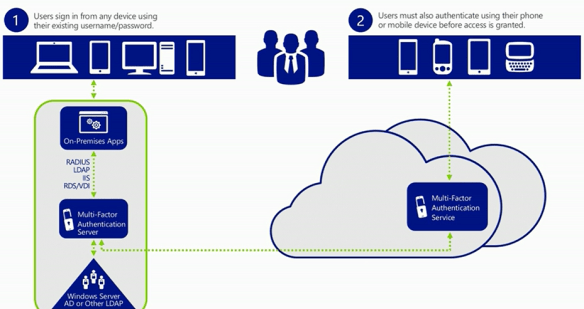
Option 4: Implement an Azure Multi-Factor Authentication Server in your on premise environment and use the Azure Multi-Factor Authentication Service

This is really a combination of options 1 and 3.  It uses Azure for the Multi-Factor Authentication Service (in Azure) and it uses the Azure Multi-Factor Authentication Server (on premise install on a server with internet access).  The benefit here is that you don’t have to do custom development or maintain any code.  Rather you perform a server installation and configuration only.

This should be the solution if you want to implement Multi-Factor authentication with no development involved using user identities in your on premise AD store.  This is also the solution if you are considering cloud based Single Sign On applications.

Below shows the overview video of how the process would work:

Azure.MultiFactorAuthentication.OnPremise.929x493


See Enabling Multi-Factor Authentication for On-Premises Applications and Windows Server for details: http://technet.microsoft.com/en-au/library/dn249467.aspx


In most on premise SharePoint use cases, Option 4 will be the best solution…