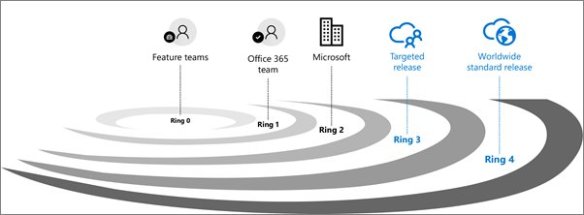
Office 365 Release Rings – “First Release” changed to “Targeted Release”
Image
Reply

I have been using the SharePoint 2013 Client Components SDK for more than two years now to develop console apps against both SharePoint 2013 and SharePoint Online. This worked pretty well for me as then I could build a single console app that deploys solution assets to On-Prem Development environments and then deploy those same solution assets to Office 365 for integration, UAT, Staging, and Production environments.
As of September 2014, things changed! All of a sudden there were two SDKs, a “SharePoint 2013 Client Component SDK” and a “SharePoint Online Client Component SDK”. Both SDKs are named “sharepointclientcomponents_x64.msi” and sharepointclientcomponents_x86.msi” (x64 and x86 versions respectively for each SDK). I was about to think that these are the same SDKs, but targeted for the On-Prem/Online environments only. Then I looked at the file size and was confused…
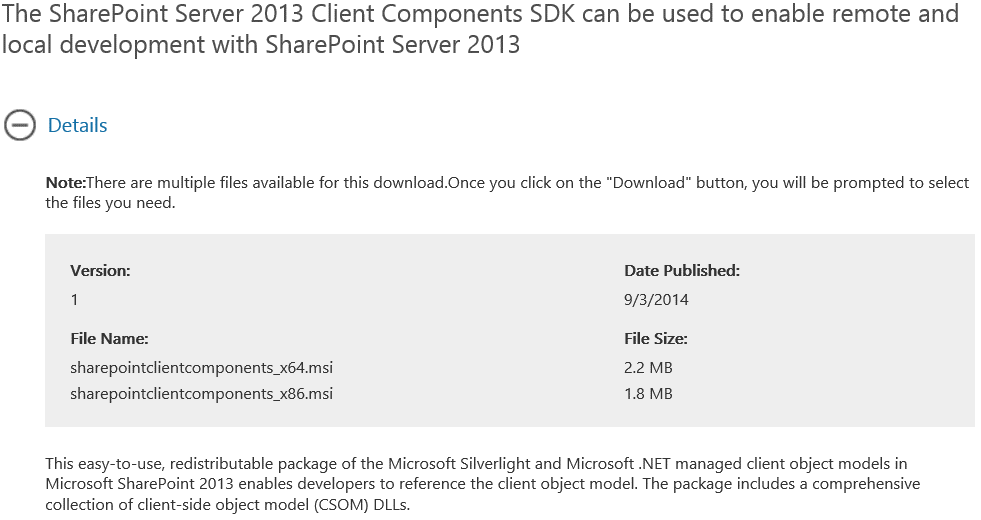

Why are these files named exactly the same name and published exactly the same date, but are different sizes??? So I started digging to find the answer…
After some searching, I found out that the version numbers of the SharePoint 2013 Client Components SDK is version 15. This makes sense as this matches the version number of SharePoint 2013. The publish date indicated to me that this SDK included all the changes from SharePoint 2013 Service Pack 1. This is the same SDK I have been using all along for the past two years, but updated from Service Pack 1.
I also found out that the SharePoint Online Client Components SDK is version 16. This is the version number for the next version of SharePoint On-Prem (SharePoint 2016 presumably). At first I thought that was strange, but then after all the news and changes that Microsoft has been pumping out regarding the changes over the past year in Office 365 and the news that some (not all) of these changes will be pushed into the next On-Prem version, it started to make sense.
Here is what I think happened (only my perceptions from everything I could find out up to this point)…
SharePoint 2013 and SharePoint Online were using the same codebase (assemblies) up to the release of SharePoint 2013 Service Pack 1. From that point on, SharePoint Online’s codebase version changed to 16 to reflect the new development in SharePoint Online only as promised by Microsoft when they beat us with their “Cloud First” strategy message. The fact that the version number changed in SharePoint Online was first pointed out and documented by Gary Lapointe in his post “SharePoint 2013 Version 16.0.0.1810???”: http://blog.falchionconsulting.com/index.php/2013/08/sharepoint-2013-version-16-0-0-1810.
So what does this mean for developers and SharePoint ALM???
Well, in general we can no longer use the same codebase to deploy solutions for both SharePoint On-Prem and Online as they are likely to never be the same again (with On-Prem always lagging by a major version number). Online development must start in a SharePoint Online development site and deployed/migrated to different tenants/site collections using the SharePoint Online Client Components SDK.
If we want to deploy the same codebase to both On-Prem and Online, then we will have to use the SharePoint 2013 Client Component SDK, but can not use any of the new capabilities of the Online version. After reading “Evolution of SharePoint”: http://blogs.office.com/2015/02/02/evolution-sharepoint, this now makes sense. Dan Holme did a great job explaining the news in detail on his post “The Evolution of Microsoft, SharePoint & Office 365”: http://www.itunity.com/article/evolution-sharepoint-office-365-856
Now if you do start with the SharePoint Online Client Component SDK and you want to target your solution to SharePoint 2013 (or vice versa), then you can follow “How do I run the Office 365 Developer Patterns and Practices against SharePoint 2013 On Premises”: https://github.com/OfficeDev/PnP/wiki/How-do-I-run-the-Office-365-Developer-Patterns-and-Practices-against-SharePoint-2013-On-Premises.
A great article on where we are heading with Office 365 & SharePoint 2016…
http://www.itunity.com/article/evolution-sharepoint-office-365-856
WHY MULTI-FACTOR AUTHENTICATION
Multi-Factor authentication is an idea that has long been overdue for most internet facing sites as most of them today are in-secure in their implementations utilizing single factor authentication. Bad actors have long found ways to intercept identities and passwords (due to lax password rules and policies, identity breaches, spyware, and social engineering) making single factor authentication insufficient security for most organizations in today’s world.
Most internet facing SharePoint sites never had to worry too much about this as most traditional on premise internet facing SharePoint site implementations are extranet sites using reverse proxy solutions utilizing AD identities. These identities most often had stronger passwords, policies, and encryption…buffering them from most bad actor efforts. They however still vulnerable to identity breaches, spyware, and social engineering attacks.
However, things are changing…
Going forward, most SharePoint sites will be public facing in some form or another. Take for example that Claims authentication could be delegated to Facebook or LinkedIn or (as of SharePoint 2013 SP1) on premise users can have access to OneDrive. Or that they may be using Provider hosted SharePoint Apps that are hosted in the cloud, or that these SharePoint farms might be a hybrid implementation utilizing Office 365 or they may even exist entirely in a cloud infrastructure such as Azure. Sure, Microsoft has built security using standards that are effective and secure for single factor authentication, but this doesn’t stop bad actors from breaking security using identity breaches, spyware, and social engineering. This is where the multi-factor authentication shines.
By forcing users to not only enter identity information, but to also validate them using another communications method such as SMS, email, or even voice calls (among others), it prevents most identity breaches, spyware, and social engineering type attacks. This is becoming more and more important as more of our information (including personally identifiable information [PII]) continues to move to the cloud, including information in SharePoint.
IMPLEMENTATION OPTIONS FOR ON PREMISE MULTI-FACTOR AUTHENTICATION
So the next step is to figure out how to implement Multi-Factor authentication for an on premise SharePoint site. Currently I can only see four options (if you know of others, please notify me):
Option 1: Use simple Azure Multi-Factor authentication
This will require that you store your user identities in AD on Azure. This is usually a non-starter for most organizations as they typically store their identities in on premise AD. There are ways to perform AD synching in order to replicate on premise identities in the cloud, but this is neither simple, nor is it without governance issues in most cases.
This would be the approach I would use if it was ok to store user identities in Azure AD such as typical Office 365 scenarios.
See Multi-Factor Authentication documentation for details: http://azure.microsoft.com/en-us/documentation/services/multi-factor-authentication/
Option 2: Use ADFS
ADFS will authenticate based on user certificates from the local certificate store or claims providers. This will however require extensive configuration of ADFS and implementation of trusted identity provider inside SharePoint. This may get simpler in the next version of Windows Server.
As it stands today, this should only be chosen in scenarios for non-cloud based Single Sign On applications, and not for simpler scenario such as typical Multi-Factor authentication due to the complexity of the implementation. If however you want to implement the secondary authentication method via a 3rd party secure provider (such as RSA SecurID), this is likely the approach you should take.
See Under the hood tour on Multi-Factor Authentication in ADFS for details: http://blogs.msdn.com/b/ramical/archive/2014/01/30/under-the-hood-tour-on-multi-factor-authentication-in-ad-fs-part-1-policy.aspx
Option 3: Implement forms authentication and customize the login page to implement Multi-Factor authentication
First you can authenticate the user using your favorite identity store (such as AD or Asp.Net membership provider) and then you would use custom logic for SMS, email, or voice calls authentication. A team of skilled developers could be able to implement this, however you will need a provider service to send and receive the secondary authentication communications.
This should be the solution if you want to implement Multi-Factor authentication in-house only.
Option 4: Implement an Azure Multi-Factor Authentication Server in your on premise environment and use the Azure Multi-Factor Authentication Service
This is really a combination of options 1 and 3. It uses Azure for the Multi-Factor Authentication Service (in Azure) and it uses the Azure Multi-Factor Authentication Server (on premise install on a server with internet access). The benefit here is that you don’t have to do custom development or maintain any code. Rather you perform a server installation and configuration only.
This should be the solution if you want to implement Multi-Factor authentication with no development involved using user identities in your on premise AD store. This is also the solution if you are considering cloud based Single Sign On applications.
Below shows the overview video of how the process would work:
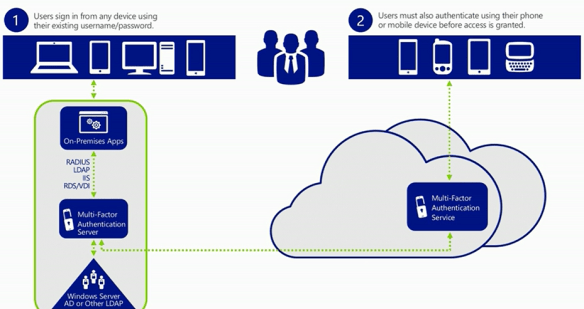
See Enabling Multi-Factor Authentication for On-Premises Applications and Windows Server for details: http://technet.microsoft.com/en-au/library/dn249467.aspx
In most on premise SharePoint use cases, Option 4 will be the best solution…
Service Pack 1 for SharePoint 2013 introduced Office 365 for MySites/OneDrive for Business and Yammer integration. This is a simple post detailing how an administrator would go about setting this functionality up.
http://thesharepointfarm.com/2014/02/new-surface-features-sharepoint-2013-sp1/
http://blogs.msdn.com/b/officeapps/archive/2013/10/17/announcing-visual-studio-2013-rtm.aspx
Including:
http://www.discoversharepoint.com
Good site to send new SharePoint 2013 non-IT end users for learning SharePoint 2013!
 Samer 365