Skip to primary content
Skip to secondary content

Samer 365

Meanderings on Consulting, GenAI, Copilot, Azure & Microsoft 365

Samer 365

Main menu

  • Home

Monthly Archives: March 2013

Drag and Drop Navigation

Posted on March 1, 2013 by Samer365
Reply
  1. Go to the site where you are using the Managed Navigation
  2. Go to a page that has an item you would like to add to the global navigation
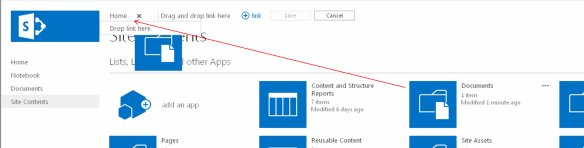
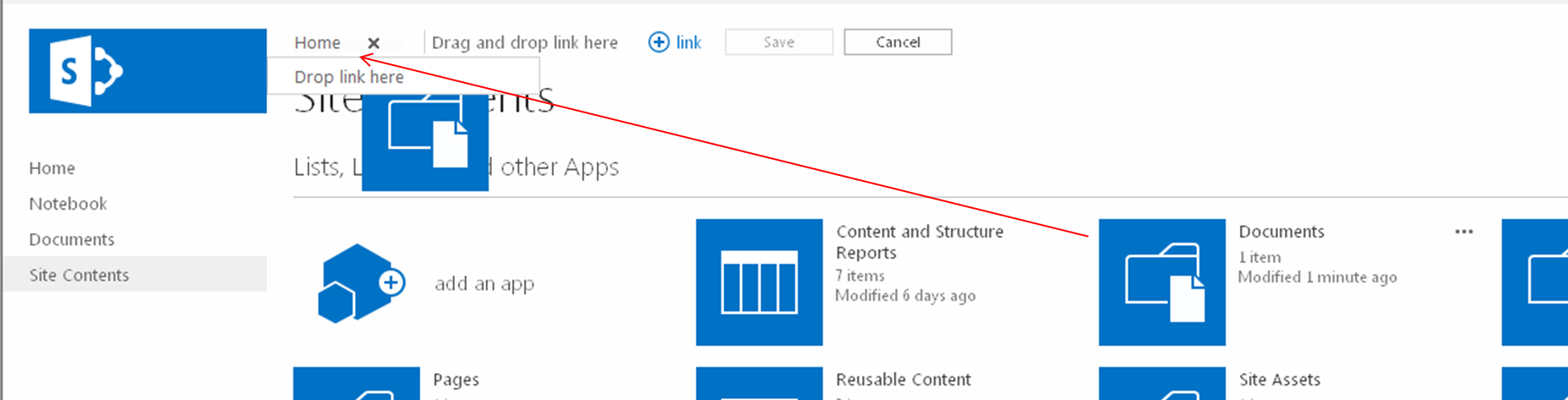
    1. In my example, I will add the “Documents” document library, so I went to the “Site Content” page
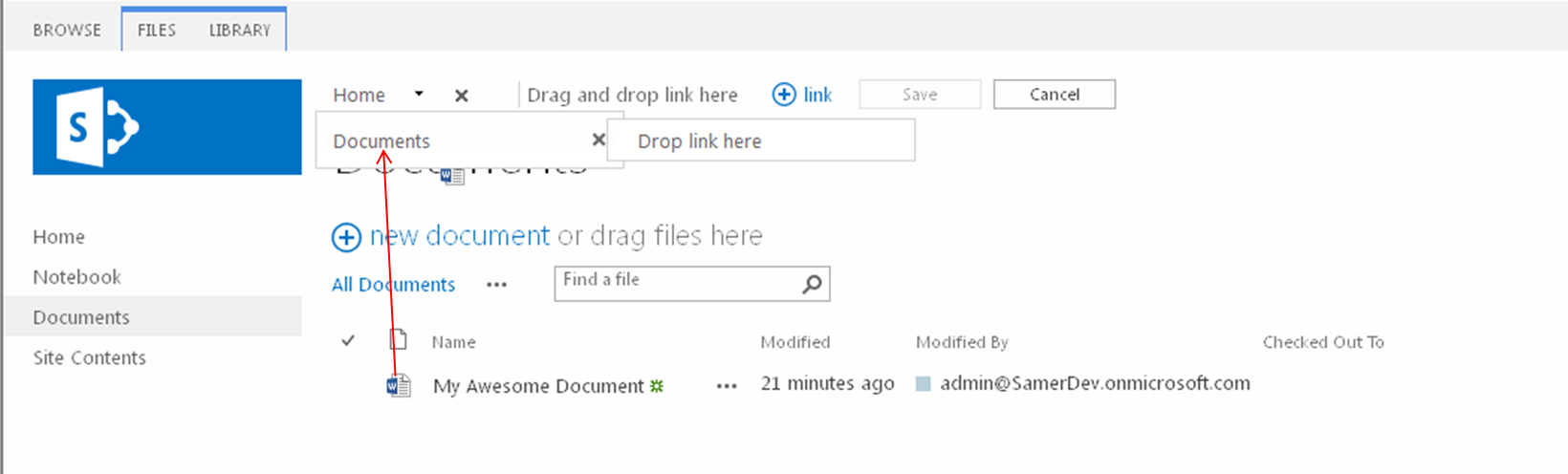
  3. You will see the “EDIT LINKS” link to the right of your global navigation, click the “EDIT LINKS” link (remember that you need to have full control on this site to see this link)
  4. You can add that item as a top level navigation item or as a child navigation item of an existing item
    1. To drop the item as a top level navigation item, drag and drop the item onto the “Drag and drop link here” text
    2. To drop the item as a child of an existing item, drag and drop the item onto the existing itemMetadataDrivenNavigation.Figure6
  5. Click the Save button
  6. Repeat steps 2-5 until you have added all the items you want in your navigation
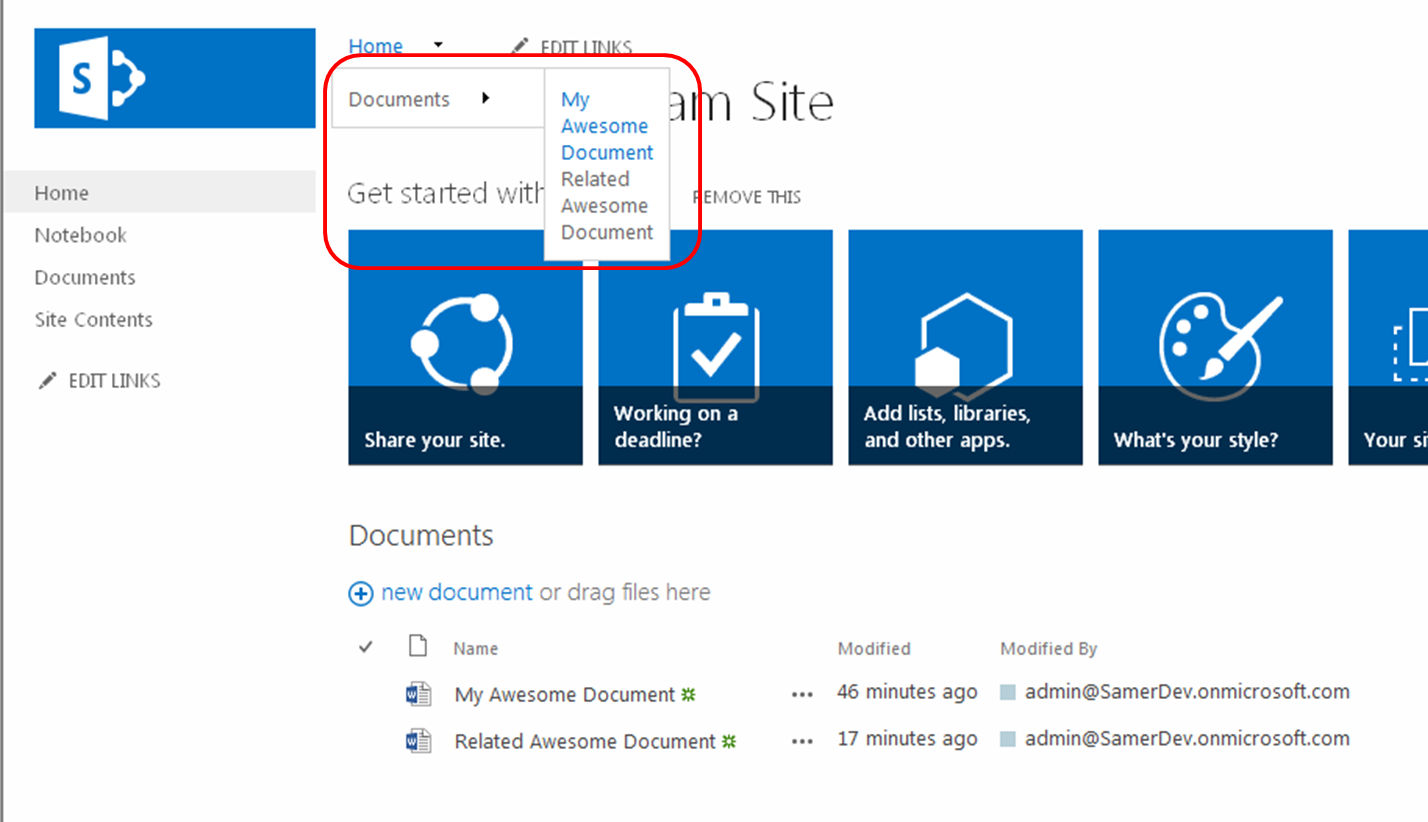
    1. Items can be any draggable objects in your SharePoint sites, so this includes Apps (including lists and libraries) and items (this includes list items, documents, and even people)
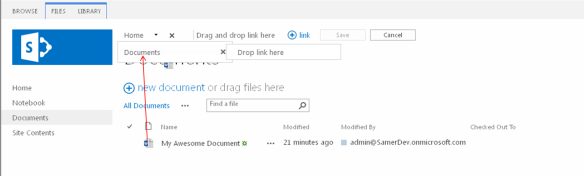
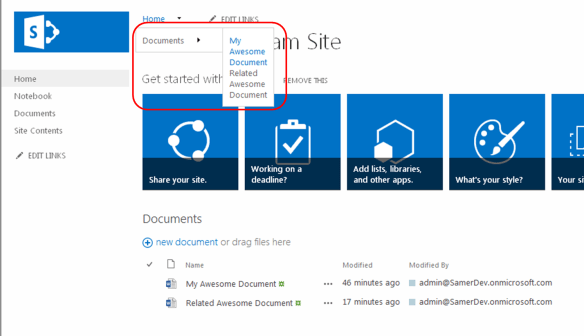
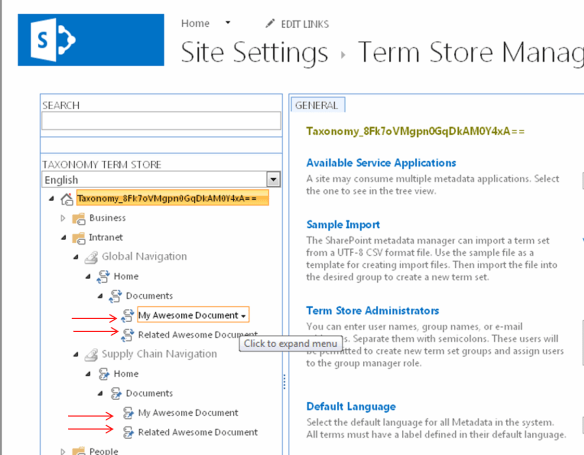
    2. For my example, I now opened the Document library and added the “My Awesome Document” under the Documents navigation itemMetadataDrivenNavigation.Figure7MetadataDrivenNavigation.Figure9
  7. Now if you go to the Term Store
    1. Site Actions > Site Settings
    2. Click Go to top level site settings [Site Collection Administration], if you are not on the root site collection
    3. Click Term store management [Site Administration]
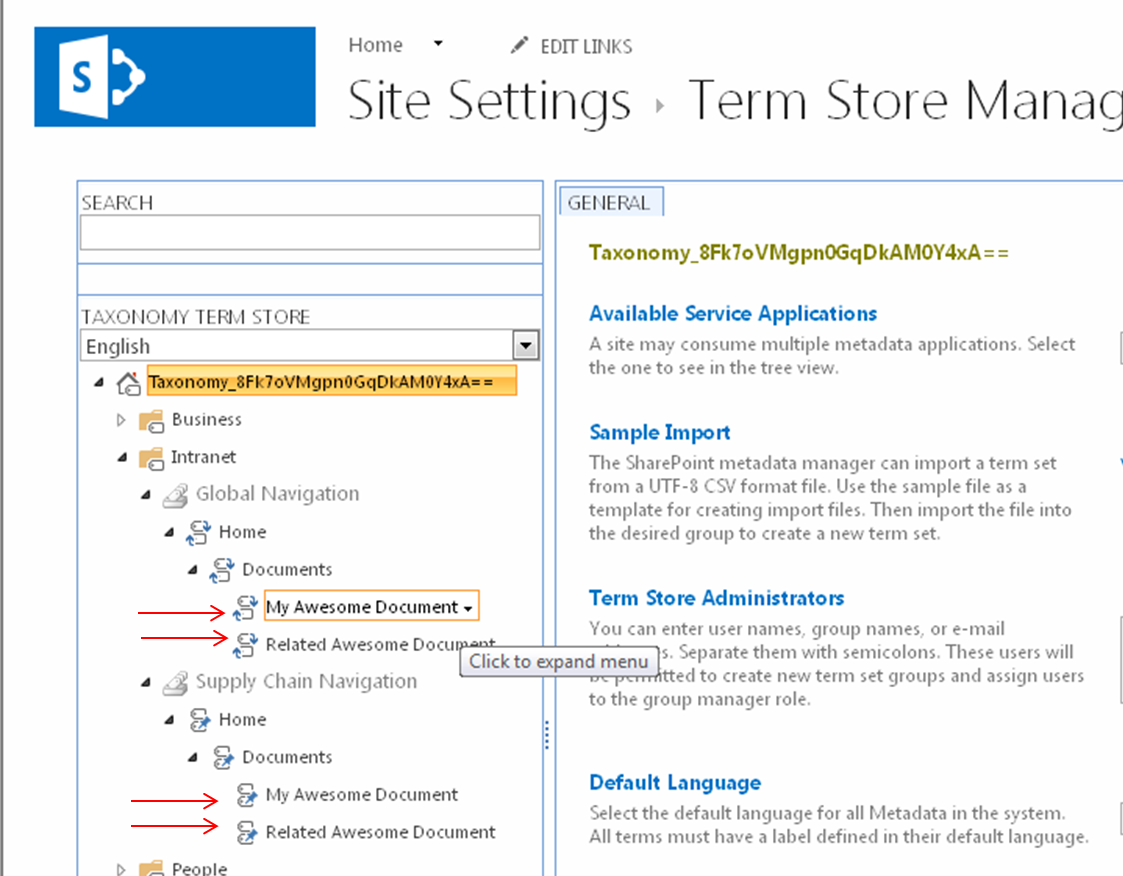
  8. Click on a Term Group that you are using for your global navigation (my example in the screen shots below is called “Intranet”)MetadataDrivenNavigation.Figure8
  9. As you can see, the navigation items that you have dragged and dropped are now terms under your global navigation Term Set.  In addition, you will notice that any pinned terms to the source term that you added now also have pinned sub terms.
  10. Also notice that in the Term Store you can add more children terms under the navigation terms that were added.  However anything beyond three levels will not show up in the global navigation, but can be used if you are intending to use this navigation Term Set for tagging content.
Posted in Managed Metadata, Navigation, SharePoint 2013 | Tagged Drag n Drop, Metadata, Navigation, Tagging, Term Store | Leave a reply

Configure a site’s Managed Navigation settings

Posted on March 1, 2013 by Samer365
Reply
  1. Go to the site where you would like to use Managed Navigation
    1. NOTE: if you would like to use Navigation inheritance for children sites, then make sure to perform the configuration on the top site which should have this navigation in your Site Collection (most likely your root site in the collection)
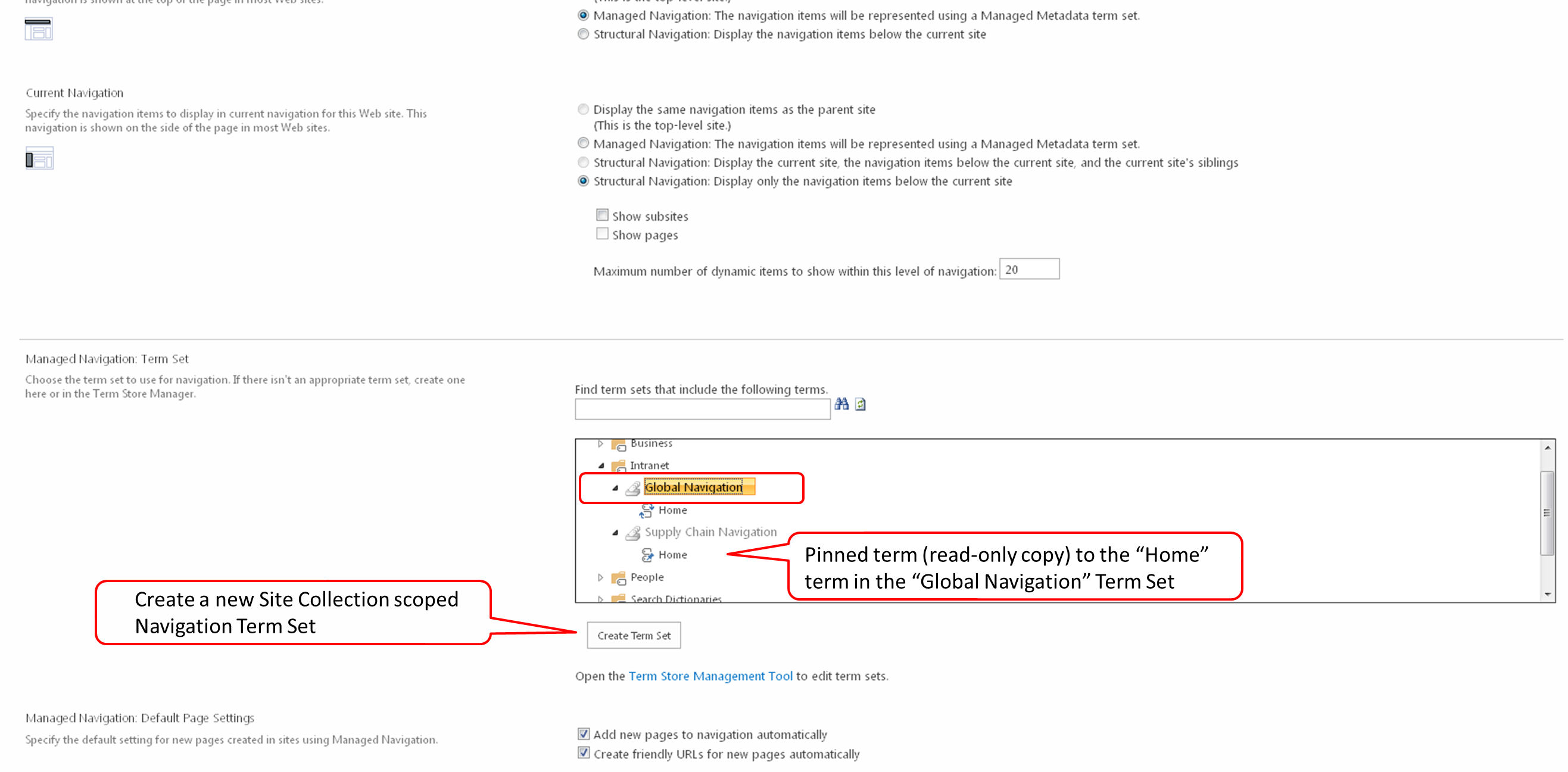
    2. NOTE: a navigation Term Set can only be configured once to a site, if you would like to reuse your Term Set for navigation on another peer site or another Site Collection, or even another Web Application, then you will need to create another Term Set and pin the first level terms (with children) to your existing Term Set.  You can see this in the screen shot below on the Term Set “Supply Chain Navigation”.
  2. Go to the Navigation configuration screen in Site Settings
    1. Click Site Actions > Site Settings
    2. Click Navigation [Look and Feel]
  3. Click on the Managed Navigation option [Global Navigation section]
  4. Expand the Term Groups and select the Term Set that you would like to use for your site’s Navigation [Managed Navigation: Term Set section] or click the “Create Term Set” button to create a new Site Collection scoped Navigation Term SetMetadataDrivenNavigation.Figure4
  5. Then click the OK button
  6. Go to your site and observe the Global NavigationMetadataDrivenNavigation.Figure5
Posted in Managed Metadata, Navigation, SharePoint 2013 | Tagged Drag n Drop, Inheritance, Metadata, Navigation, Tagging, Term Store | Leave a reply

Create the Managed Navigation Term Set

Posted on March 1, 2013 by Samer365
Reply
  1. For single Site Collection Navigation scoped Term Sets, go to the CONFIGURE A SITE’S MANAGED NAVIGATION SETTINGS post
    1. NOTE: the advantages here over traditional SharePoint Navigation are minimal
  2. For Global Navigation scoped Term Sets, go to the Term Store
    1. In on premise Central Admin
      1. Click Application Management
      2. Click Manage Service Applications [Service Applications]
      3. Click Managed Metadata Service
    2. In Office 365
      1. Click Admin > SharePoint [SharePoint Admin Center (SPO Admin)]
      2. Click Term Store
    3. In Site Collection (on premise or Office 365):
      1. Click Site Actions > Site Settings
      2. Click Go to top level site settings [Site Collection Administration], if you are not on the root site collection
      3. Click Term store management [Site Administration]
  3. Click on a Term Group that you are either a group manager or contributor on or create a new one (my example in the screen shots below is called “Intranet”)
  4. Create a new Term Set (my example in the screen shots below is called “Global Navigation”)
  5. Click on the “Intended Use” tab
  6. Check the “Use this Term Set for Site Navigation” option and click the Save buttonMetadataDrivenNavigation.Figure2
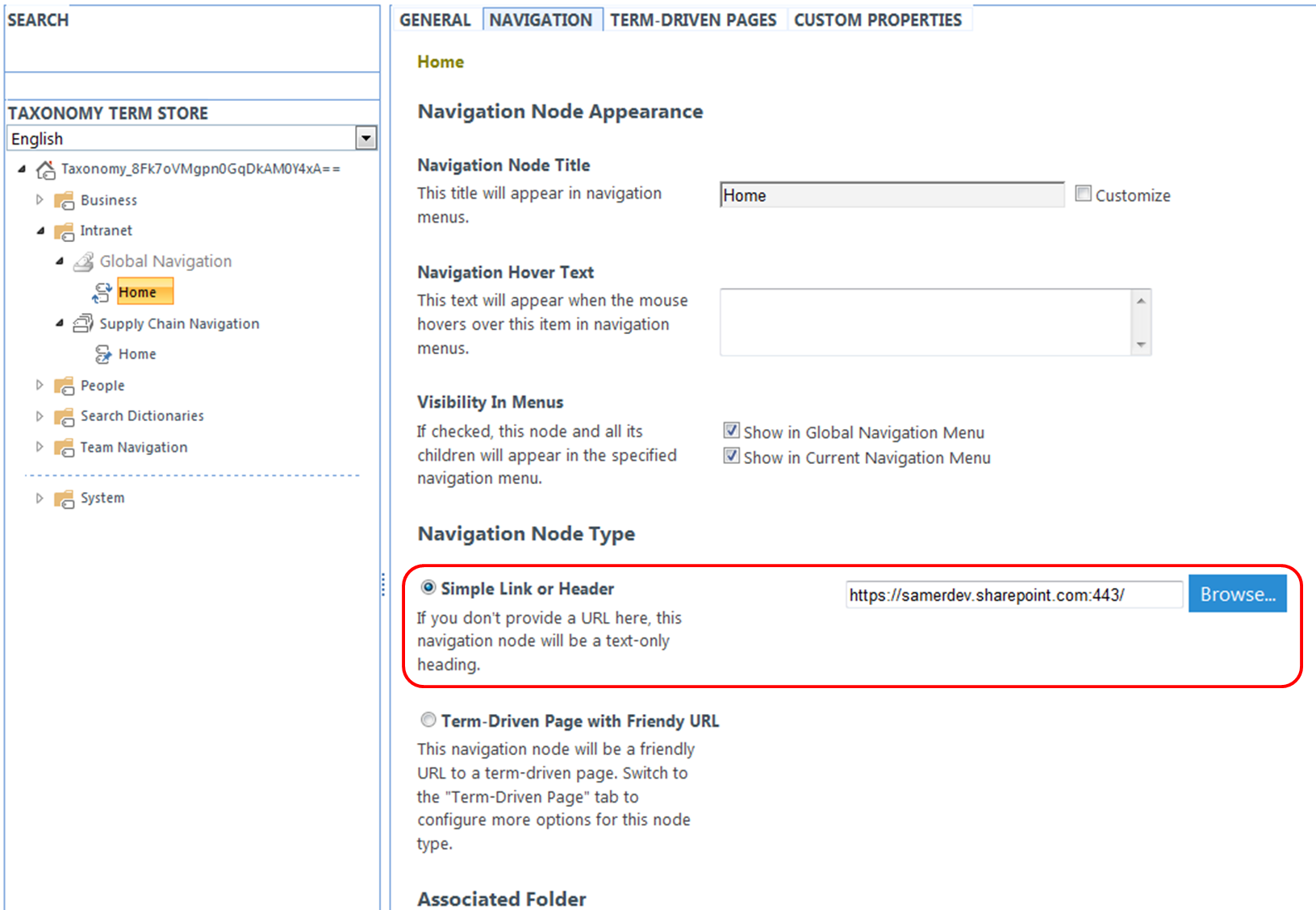
  7. Create a new Term (my example in the screen shot below is called “Home”)
  8. Click on the “Navigation” tab
  9. Click the “Simple Link or Header” radio button [Navigation Node Type]
  10. Enter the URL to the a site you would like to use as a home/landing site and click the Save button
    1. You can enter a host/Web Application relative URL to your site
    2. It is recommended to enter a full URL that includes the protocol, host, and port in case your Global Navigation Term Set might be used across multiple Web Applications or Site Collections (more on this in a bit)MetadataDrivenNavigation.Figure3
Posted in Managed Metadata, Navigation, SharePoint 2013, SPO 2013 | Tagged Drag n Drop, Metadata, Navigation, Office 365, Tagging, Term Store | Leave a reply

What you need to know about Managed Navigation

Posted on March 1, 2013 by Samer365
Reply

In 2013, if you go to Site Actions > Site Settings > Navigation (under the Look and Feel section), you will see the screenshot below. You need to have the “SharePoint Server Publishing Infrastructure” site collection feature activated to see the Navigation option. Any site that belongs to this site collection will now have the capability to use Managed Metadata based navigation, no matter which site template was used (you do not need to have a site created using the publishing site template or even have the “SharePoint Server Publishing” site feature turned on for this to be available.

MetadataDrivenNavigation.Figure1

You will notice the “Managed Navigation” option; this option is new in SharePoint 2013 and can provide you the following benefits.

  • Allows you to create navigation menus with 3 tiers (the other options allow you no more than 2 tiers)
  • A consistent navigation experience across sites, site collections, and even web applications (within a single tenant)
  • Flexibility to make changes to menus across sites without duplication of effort for each site
  • Ability to tag content and people with navigation items
  • Friendly URLs
  • Navigation item Pinning and Reusing

The only disadvantage to using the “Managed Navigation” option is that security trimming of the navigation items will no longer work. Managed Metadata Global Navigation is intended to provide a cross-site collection consistent navigation experience. Since each site collection is its own security perimeter, security trimming navigation items is not possible.

Posted in Managed Metadata, Navigation, SharePoint 2013, SharePoint 2013, Usability & User Experience | Tagged Metadata, Navigation, Security Trimming, SharePoint Server Publishing Infrastructure, Tagging, Term Store | Leave a reply

Top Posts & Pages

  • The Evolution of Microsoft Project to Planner Premium
  • Create Multiple Edge Web Apps for each Microsoft Teams Guest Tenant
  • O365 Group created from Teams don't show up in Outlook desktop and online
  • Microsoft Teams / Skype for Business coexistence and interoperability
  • Privileged Access Management (PAM)
  • External Users trying to accept the invitation get an error message "That Didn't Work"
  • QnA Maker
  • Starting Microsoft Teams conversation on items from SharePoint list
  • In order event processing with Azure Functions
  • Microsoft Writing Style Guide Released

Archives

  • November 2024
  • August 2020
  • December 2018
  • November 2018
  • March 2018
  • February 2018
  • January 2018
  • September 2017
  • March 2016
  • February 2015
  • January 2015
  • May 2014
  • February 2014
  • January 2014
  • November 2013
  • October 2013
  • August 2013
  • July 2013
  • June 2013
  • May 2013
  • April 2013
  • March 2013
  • February 2013
  • August 2012
  • May 2012
  • March 2012
  • February 2012

Tags

  • Absolute URLs
  • Administration
  • Authentication
  • BCS
  • callout.js
  • CallOuts
  • CCP
  • CEWP
  • Claims
  • Client Side Rendering (CSR)
  • Community Sites
  • Content Editor Web Part
  • Content Search Web Part
  • Cross-Site Collection Publishing
  • CRUD
  • CSOM
  • CSWP
  • DeltaSuite
  • Document Library
  • Drag n Drop
  • Dropbox
  • Entities
  • ErrorActionPreference
  • External Content Type
  • FAST
  • Fields
  • Guide
  • Guides
  • iCloud
  • Impersonation
  • InfoPath
  • Inheritance
  • Items Matching a Tag
  • JavaScript
  • Lab
  • List Items
  • mailbox
  • Managed Metadata Service
  • Metadata
  • Microsoft
  • models resources
  • Navigation
  • Office 365
  • Outlook
  • Permissions
  • Power BI
  • Preview
  • Product Catalog
  • Relative URLs
  • Reorganization
  • REST
  • Revert To Self
  • runtime errors
  • Search
  • Security
  • Security Trimming
  • service applications
  • SharePoint Designer
  • SharePoint Saturday
  • SharePoint Server Publishing Infrastructure
  • Site Templates
  • SkyDrive
  • software
  • SPS Philly
  • SQL Server
  • SSS
  • Tagging
  • Term Store
  • Training
  • Updates
  • Views
  • Visual Studio & TFS
  • Web Parts
  • Workflows
  • XML

Meta

  • Create account
  • Log in
  • Entries feed
  • Comments feed
  • WordPress.com
Blog at WordPress.com.
  • Subscribe Subscribed
    • Samer 365
    • Already have a WordPress.com account? Log in now.
    • Samer 365
    • Subscribe Subscribed
    • Sign up
    • Log in
    • Report this content
    • View site in Reader
    • Manage subscriptions
    • Collapse this bar
 

Loading Comments...